JavaOne 2026

JavaOne 2026

If I should pick one conference that has been instrumental in defining my career, it would be JavaOne. I have attended almost all editions of JavaOne since my first time in 1999 including the years it was branded as CodeOne. First as an attendee, later as a speaker. What makes JavaOne special is the quality of the technical content and of course the Community. JavaOne is the plays to meet the Java Community. JavaOne 2026 was the second JavaOne since the restart back in the Bay Area. It is now a smaller more boutique-like conference far from what it used to be in its hay-days in the beginning of the Millennium.

I didn’t have a regular talk at this year’s JavaOne and my intention was to go there and enjoy as an attendee. But then the opportunity to host a mentoring session in the Mentoring Hub came up. Since I have done mentoring sessions at the Mentoring Hubs at Jfokus and Devnexus earlier this year, signing up for this was a no-brainer.

I had a session about how to Get Started with Open Source. This is a topic near to my heart. It is also a topic a lot of interested people wonder about.

The Mentorship Hub is the best place to meet new community members, so I ended up hanging around that area most of the time between the sessions I listened to.

JavaOne for me is mostly about the hallway track. And the hallway track this year was just as good as last year. There is no place on the planet where you can bump into so many luminaries in the Java Community.

On Friday, the day after the conference, we had one of our two yearly face-to-face meetings in the Java Community Executive Committee.We had a lot of great presentations about what the different members are doing with and for the community. Since the meeting was held at the Oracle campus, it was a natural choice to take the group photo and some selfies in front of the Oracle sponsored Team USA America’s Cup boat outside one of the office buildings.

Ivar Grimstad


Dropdowns Inside Scrollable Containers: Why They Break And How To Fix Them Properly

The scenario is almost always the same, which is a data table inside a scrollable container. Every row has an action menu, a small dropdown with some options, like Edit, Duplicate, and Delete. You build it, it seems to work perfectly in isolation, and then someone puts it inside that scrollable div and things fall apart. I’ve seen this exact bug in three different codebases: the container, the stack, and the framework, all different. The bug, though, is totally identical.

The dropdown gets clipped at the container’s edge. Or it shows up behind content that should logically be below it. Or it works fine until the user scrolls, and then it drifts.
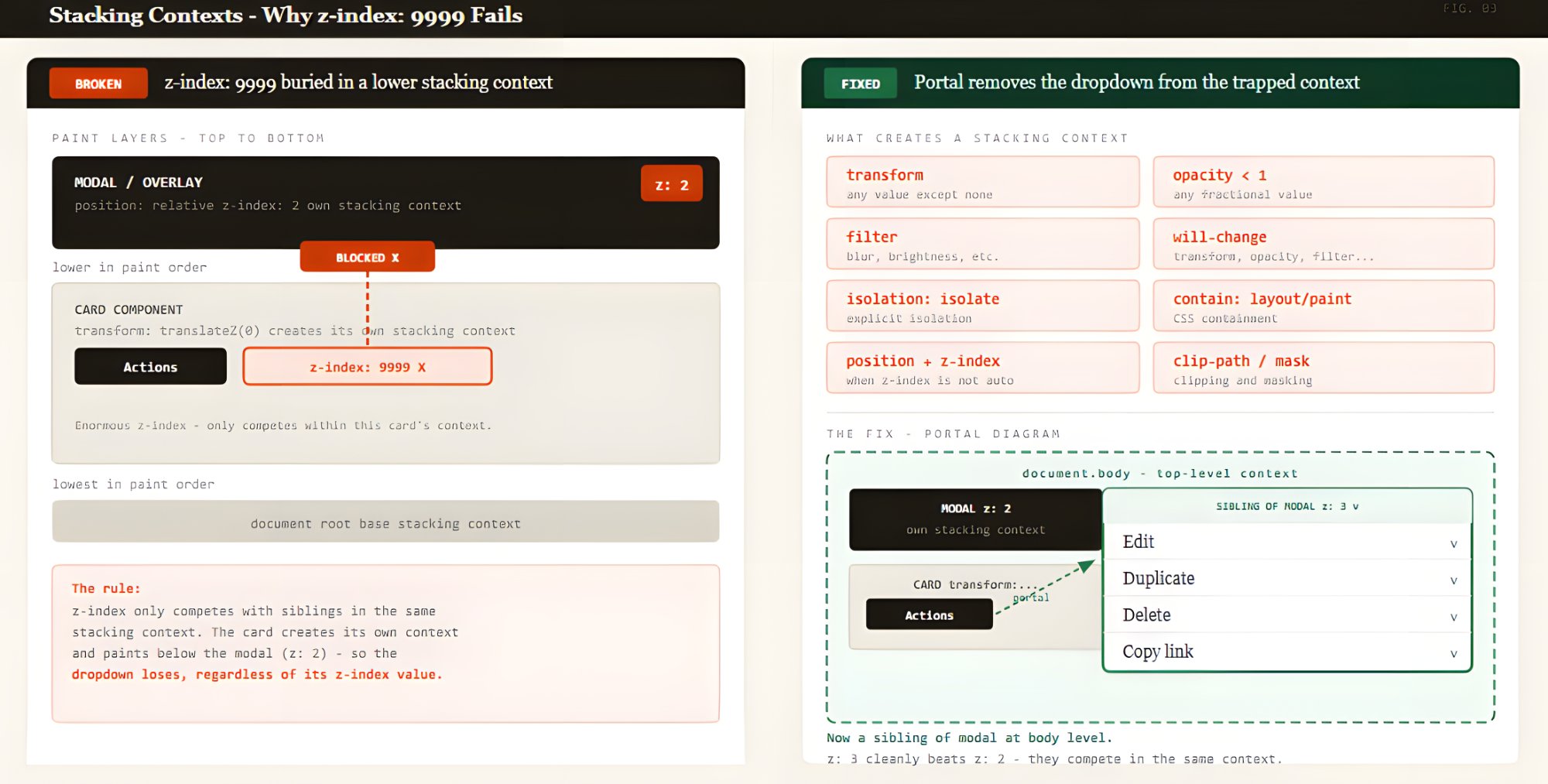
You reach for z-index: 9999. Sometimes it helps, but other times it does absolutely nothing. That inconsistency is the first clue that something deeper is happening.

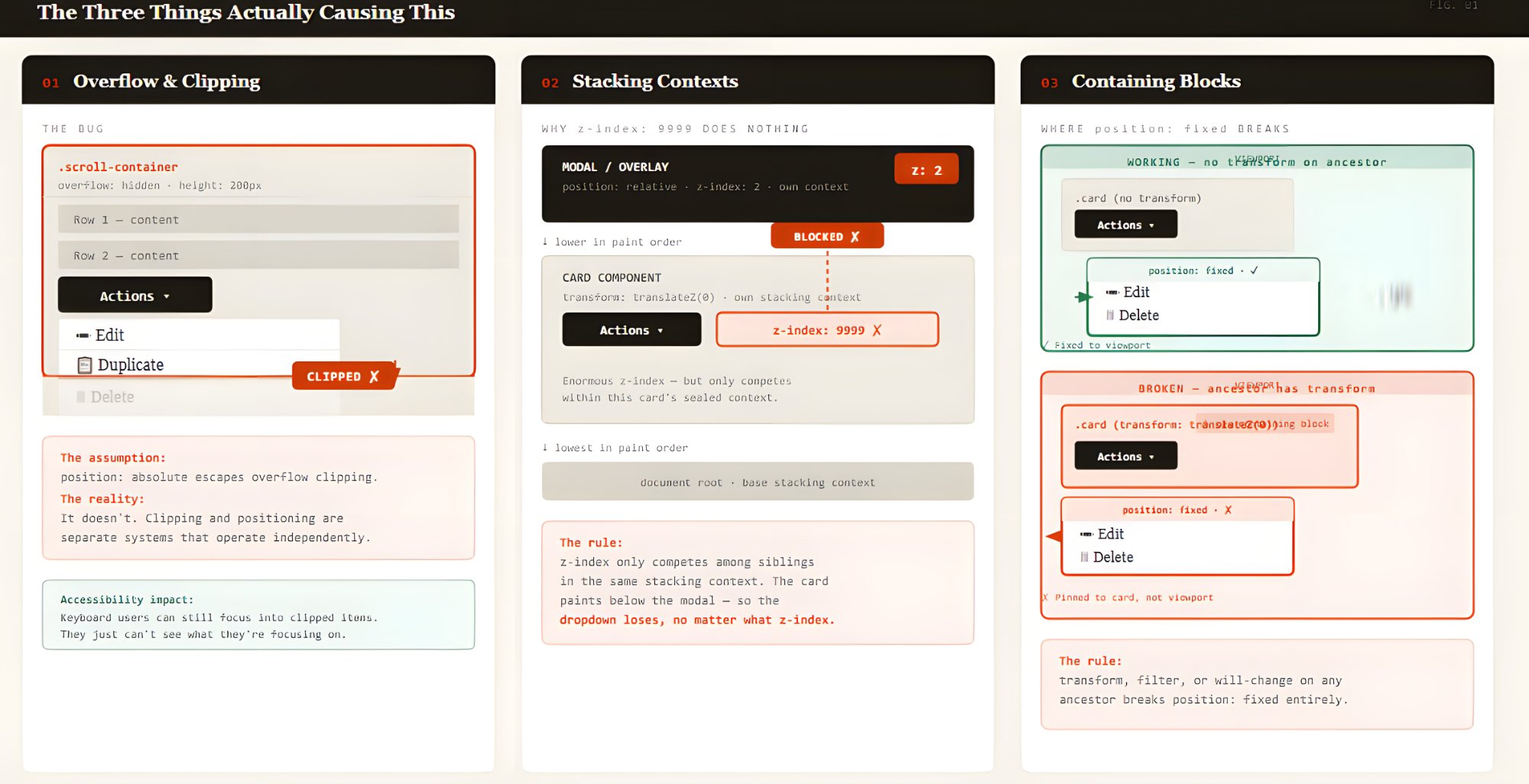
The reason it keeps coming back is that three separate browser systems are involved, and most developers understand each one on its own but never think about what happens when all three collide: overflow, stacking contexts, and containing blocks.

Once you understand how all three interact, the failure modes stop feeling random. In fact, they become predictable.

The Three Things Actually Causing This

Let’s look at each of those items in detail.

The Overflow Problem

When you set overflow: hidden, overflow: scroll, or overflow: auto on an element, the browser will clip anything that extends beyond its bounds, including absolutely positioned descendants.

.scroll-container {
  overflow: auto;
  height: 300px;
  /* This will clip the dropdown, full stop */
}

.dropdown {
  position: absolute;
  /* Doesn't matter -- still clipped by .scroll-container */
}

That surprised me the first time I ran into it. I’d assumed position: absolute would let an element escape a container’s clipping. It doesn’t.

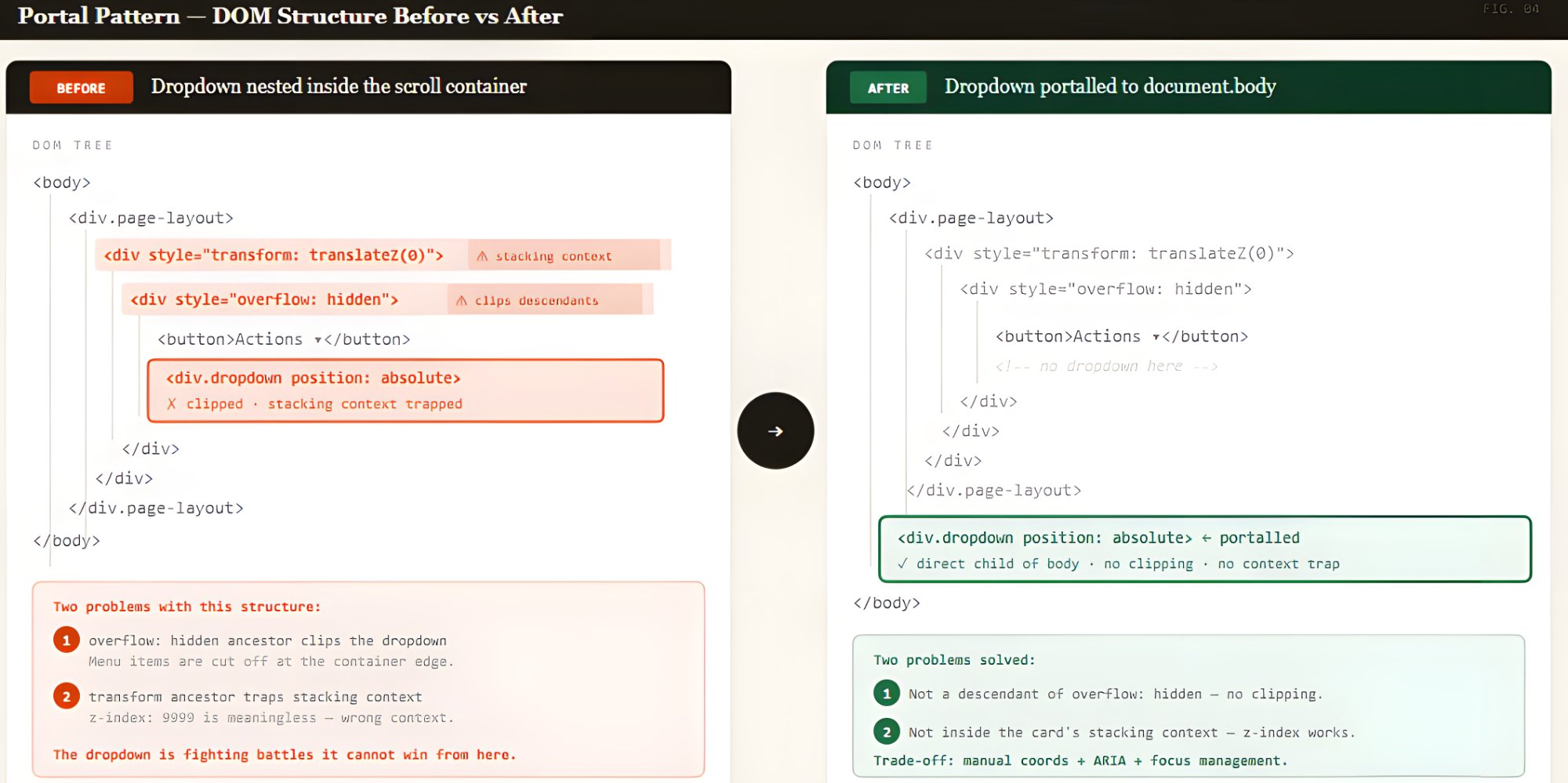
In practice, that means an absolutely positioned menu can be cut off by any ancestor that has a non-visible overflow value, even if that ancestor isn’t the menu’s containing block. Clipping and positioning are separate systems. They just happen to collide in ways that look completely random until you understand both.

Here’s a React example using createPortal:

import { createPortal } from 'react-dom';
import { useState, useEffect, useRef } from 'react';

function Dropdown({ anchorRef, isOpen, children }) {
  const [position, setPosition] = useState({ top: 0, left: 0 });

  useEffect(() => {
    if (isOpen && anchorRef.current) {
      const rect = anchorRef.current.getBoundingClientRect();
      setPosition({
        top: rect.bottom + window.scrollY,
        left: rect.left + window.scrollX,
      });
    }
  }, [isOpen, anchorRef]);

  if (!isOpen) return null;

  return createPortal(
    <div
      id="dropdown-demo"
      role="menu"
      className="dropdown-menu"
      style={{ position: 'absolute', top: position.top, left: position.left }}
    >
      {children}
    </div>,
    document.body
  );
}

And, of course, we can’t ignore accessibility. Fixed elements that appear over content must still be keyboard-reachable. If the focus order doesn’t naturally move into the fixed dropdown, you’ll need to manage it using code. It’s also worth checking that it doesn’t sit over other interactive content with no way to dismiss it. That one bites you in keyboard testing.

CSS Anchor Positioning: Where I Think This Is Heading

CSS Anchor Positioning is the direction I’m most interested in right now. I wasn’t sure how much of the spec was actually usable when I first looked at it. It lets you declare the relationship between a dropdown and its trigger directly in CSS, and the browser handles the coordinates.

.trigger {
  anchor-name: --my-trigger;
}

.dropdown-menu {
  position: absolute;
  position-anchor: --my-trigger;
  top: anchor(bottom);
  left: anchor(left);
  position-try-fallbacks: flip-block, flip-inline;
}

The position-try-fallbacks property is what makes this worth using over a manual calculation. The browser tries alternative placements before giving up, so a dropdown at the bottom of the viewport automatically flips upward instead of getting cut off.

Browser support is solid in Chromium-based browsers and growing in Safari. Firefox needs a polyfill. The @oddbird/css-anchor-positioning package covers the core spec. I’ve hit layout edge cases with it that required fallbacks I didn’t anticipate, so treat it as a progressive enhancement or pair it with a JavaScript fallback for Firefox.

In short, promising but not universal yet. Test in your target browsers.

And as far as accessibility is concerned, declaring a visual relationship in CSS doesn’t tell the accessibility tree anything. aria-controls, aria-expanded, aria-haspopup — that part is still on you.

Sometimes The Fix Is Just Moving The Element

Before reaching for a portal or making coordinate calculations, I always ask one question first: Does this dropdown actually need to live inside the scroll container?

If it doesn’t, moving the markup to a higher-level wrapper eliminates the problem entirely, with no JavaScript and no coordinate calculations.

This isn’t always possible. If the button and dropdown are encapsulated in the same component, moving one without the other means rethinking the whole API. But when you can do it, there’s nothing to debug. The problem just doesn’t exist.

What Modern CSS Still Doesn’t Solve

CSS has come a long way here, but there are still places it lets you down.

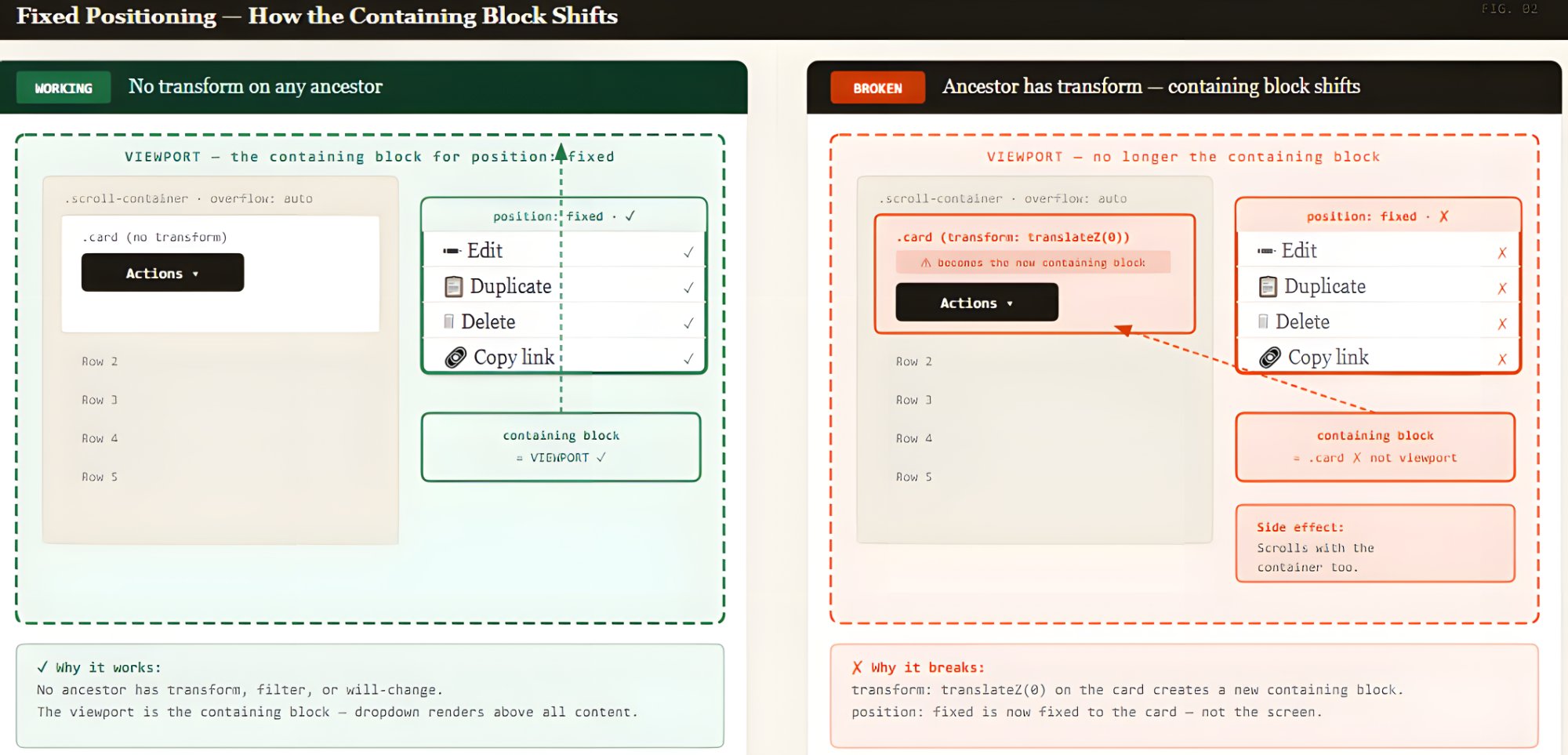
The position: fixed and transform issues are still there. It’s in the spec intentionally, which means no CSS workaround exists. If you’re using an animation library that wraps your layout in a transformed element, you’re back to needing portals or anchor positioning.

CSS Anchor Positioning is promising, but new. As mentioned earlier, Firefox still needs a polyfill at the time I’m writing this. I’ve hit layout edge cases with it that required fallbacks I didn’t anticipate. If you need consistent behavior across all browsers today, you’re still reaching for JavaScript for the tricky parts.

The addition I’ve actually changed my workflow for is the HTML Popover API, now available in all modern browsers. Elements with the popover attribute render in the browser’s top layer, above everything, with no JavaScript positioning needed.

<button popovertarget="dropdown-demo">Open</button>
<div id="dropdown-demo" popover="manual" role="menu">Popover content</div>

Escape handling, dismiss-on-click-outside, and solid accessibility semantics come free for things like tooltips, disclosure widgets, and simple overlays. It’s the first tool I reach for now.

That said, it doesn’t solve positioning. It solves layering. You still need anchor positioning or JavaScript to align a popover to its trigger. The Popover API handles the layering. Anchor positioning handles the placement. Used together, they cover most of what you’d previously reach for a library to do.

A Decision Guide For Your Situation

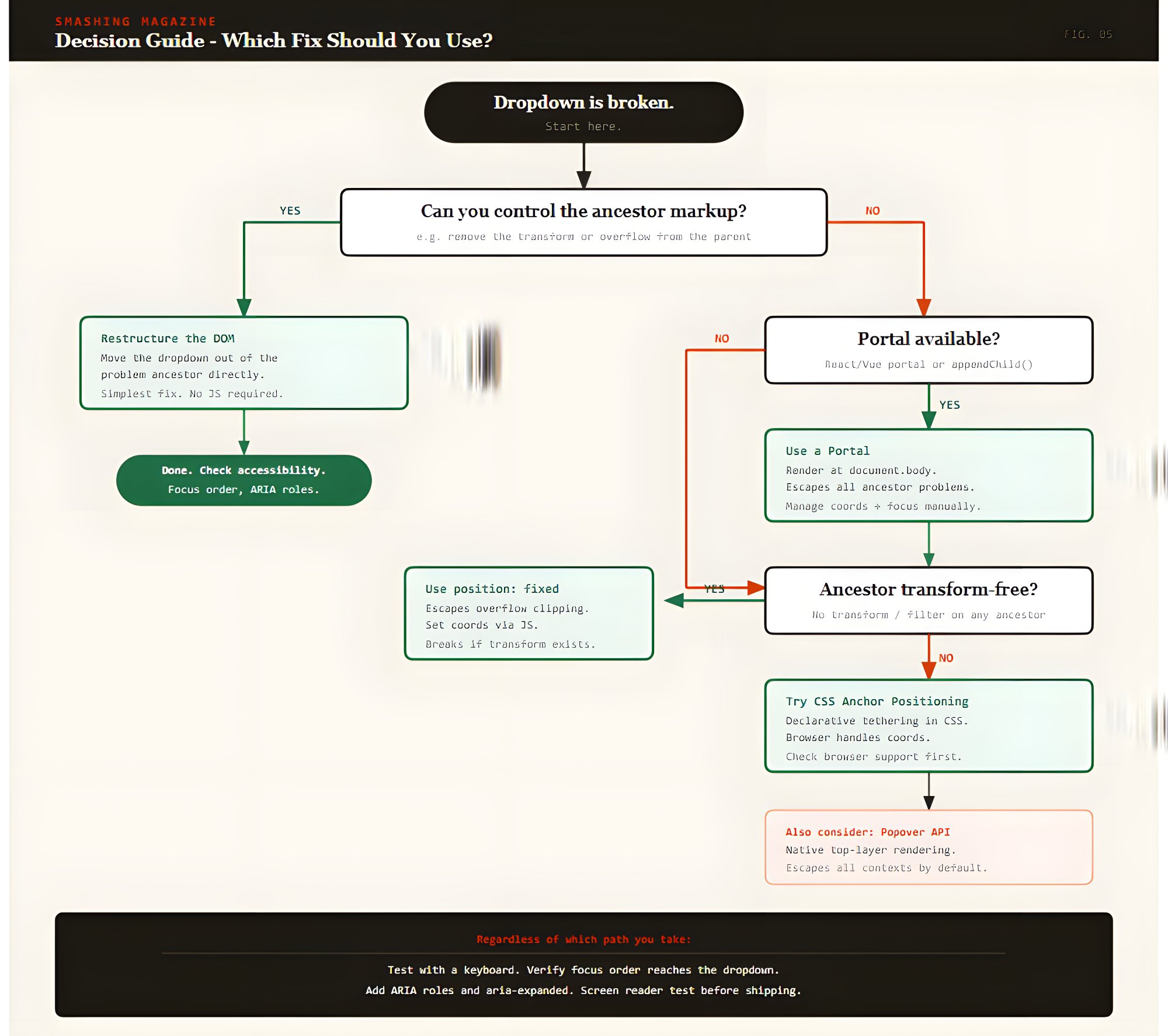
After going through all of this the hard way, here’s how I actually think about the choice now.

  • Use a portal.
    I’d use this when the trigger lives deep in nested scroll containers. I used this pattern for table action menus and paired it with focus restoration and accessibility checks. It’s the most reliable option, but budget time for the extra wiring.
  • Use fixed positioning.
    This is for when you’re in vanilla JavaScript or a lightweight framework and can verify no ancestor applies transforms or filters. It’s simple to set up and simple to debug, as long as that one constraint holds.
  • Use CSS Anchor Positioning.
    Reach for this when your browser support allows it. If Firefox support is required, pair it with the @oddbird polyfill. This is where the platform is ultimately heading and will eventually become your go-to approach.
  • Restructure the DOM.
    Use this when the architecture permits it, and you want zero runtime complexity. I believe it’s likely the most underrated option.
  • Combine patterns.
    Do this when you want anchor positioning as your primary approach, paired with a JavaScript fallback for unsupported browsers. Or a portal for DOM placement paired with getBoundingClientRect() for coordinate accuracy.

Conclusion

I used to treat this bug as a one-off issue — something to patch and move on from. But once I sat with it long enough to understand all three systems involved — overflow clipping, stacking contexts, and containing blocks — it stopped feeling random. I could look at a broken dropdown and immediately trace which ancestor was responsible. That shift in how I read the DOM was the real takeaway.

There’s no single right answer. What I reached for depended on what I could control in the codebase: portals when the ancestor tree was unpredictable; fixed positioning when it was clean and simple; moving the element when nothing was stopping me; and anchor positioning now, where I can.

Whatever you end up choosing, don’t treat accessibility as the last step. In my experience, that’s exactly when it gets skipped. The ARIA relationships, the focus management, the keyboard behavior — those aren’t polish. They’re part of what makes the thing actually work.

Check out the full source code in my GitHub repo.

Further Reading

These are the references I kept coming back to while working through this:

  • The Stacking Context (MDN)
  • “CSS Anchor Positioning Guide”, Juan Diego Rodriguez
  • “Getting Started With The Popover API”, Godstime Aburu
  • Floating UI (floating-ui.com)
  • CSS Overflow (MDN)

Stop Paying for Slop: A Deterministic Middleware for LLM Token Optimization

Context windows are getting huge, but token budgets are tightening. Every time your agent iterates in an autonomous loop, you’re potentially sending a massive, bloated prompt filled with conversational filler, redundant whitespace, and low-entropy “slop.”

Today, I’ve merged the Prompt Token Rewriter to the Skillware registry (v0.2.1).

It’s a deterministic middleware that aggressively compresses prompts by 50-80% before they ever hit the LLM.

Why does this matter?

  • Lower Costs: Pay only for the “signal,” not the “noise.”
  • Faster Inference: Fewer tokens mean less time spent on KV-caching and long generations.
  • Deterministic Behavior: Because it uses heuristics rather than another expensive LLM call, your agent behavior stays stable and repeatable.

Three Levels of Aggression

The rewriter includes three presets depending on your use case:

  1. Low: Normalizes whitespace and line breaks (Safe for strict code).
  2. Medium: Strips conversational fillers (“please,” “could you,” “ensure that”).
  3. High: Aggressively removes stop-words and non-essential punctuation (Best for machine-to-machine context).

Join the Registry

We are building a community-driven “App Store” for Agentic Capabilities—decoupling logic from intelligence. If you’ve built a specialized tool for LLM optimization, governance, or logic, we’d love your contribution!

Check out our Contributing Guide to get started.

NocoBase 2.0 Beginner Tutorial – Chapter 2: Data Modeling

Originally published at https://docs.nocobase.com/tutorials/v2/02-data-modeling

In the last chapter, we installed NocoBase and got familiar with the interface. Now it’s time to build the skeleton of our HelpDesk system — the data model.

This chapter creates two collections — Tickets and Categories — and configures field types (single-line text, dropdown, many-to-one relations). The data model is the foundation: figure out what data you need and how it’s related, then building pages and setting permissions becomes straightforward.

2.1 What Are Collections and Fields

If you’ve used Excel before, this will feel familiar:

Excel Concept NocoBase Concept Description
Worksheet Collection A container for one type of data
Column header Field An attribute describing the data
Each row Record One specific piece of data

02-data-modeling-2026-03-11-08-32-41

For example, our “Tickets” collection is like an Excel spreadsheet — each column is a field (Title, Status, Priority…), and each row is one ticket record.

But NocoBase is much more powerful than Excel. It supports multiple collection types, each with different built-in capabilities:

Type Best For Examples
General Most business data Tickets, Orders, Customers
Tree Hierarchical data Category trees, Org charts
Calendar Date-based events Meetings, Schedules
File Attachment management Documents, Images

Today we’ll use General and Tree collections. We’ll cover the others when needed.

Enter Data Source Manager: Click the “Data Source Manager” icon in the bottom-left corner (the database icon next to the gear). You’ll see the “Main data source” — this is where all our tables live.

02-data-modeling-2026-03-11-08-35-08

2.2 Creating the Core Table: Tickets

Let’s jump right in and create the heart of our system — the Tickets table.

Create the Table

  1. On the Data Source Manager page, click “Main data source” to enter

02-data-modeling-2026-03-11-08-36-06

  1. Click “Create collection”, then select “General collection”

02-data-modeling-2026-03-11-08-38-52

  1. Collection name: tickets, Display name: Tickets

02-data-modeling-2026-03-11-08-40-34

When creating a table, the system checks a set of system fields by default. These automatically track metadata for every record:

Field Description
ID Primary key, unique identifier
Created at When the record was created
Created by Who created the record
Last updated at When it was last modified
Last updated by Who last modified it

Keep these defaults as-is — no manual management needed. You can uncheck them if a specific scenario doesn’t need them.

Adding Basic Fields

The table is created. Now let’s add fields. Click “Configure fields” on the Tickets table, and you’ll see the default system fields already listed.

02-data-modeling-2026-03-11-08-58-48

02-data-modeling-2026-03-11-08-59-47

Click the “Add field” button in the top-right corner to expand a dropdown of field types — pick the one you want to add.

02-data-modeling-2026-03-11-09-00-22

We’ll add the ticket’s own fields first; relation fields come later.

1. Title (Single line text)

Every ticket needs a short title to summarize the issue. Click “Add field” → select “Single line text”:

02-data-modeling-2026-03-11-09-01-00

  • Field name: title, Display name: Title
  • Click “Set validation rules”, add a “Required” rule

02-data-modeling-2026-03-11-09-02-40

2. Description (Markdown(Vditor))

For detailed problem descriptions with rich formatting — images, code blocks, etc. Under “Add field”“Media” category, you’ll find three options:

Field Type Features
Markdown Basic Markdown, simple styling
Rich Text Rich text editor with attachment uploads
Markdown(Vditor) Most feature-rich: WYSIWYG, instant rendering, and source code editing modes

We’ll go with Markdown(Vditor).

02-data-modeling-2026-03-11-09-09-58

  • Field name: description, Display name: Description

02-data-modeling-2026-03-11-09-10-50

3. Status (Single select)

02-data-modeling-2026-03-11-09-12-00

Tickets go through stages from submission to completion, so we need a status field to track progress.

  • Field name: status, Display name: Status
  • Add option values (each option needs a “Value” and “Label”; color is optional):
Value Label Color
pending Pending Orange
in_progress In Progress Blue
completed Completed Green

02-data-modeling-2026-03-11-09-17-44

Fill in the options and save first. Then click “Edit” on this field again — now you can set the “Default value” to “Pending”.

02-data-modeling-2026-03-11-09-20-28

02-data-modeling-2026-03-11-09-22-34

The first time you create the field, there are no options yet, so you can’t pick a default value — you need to save first, then come back to set it.

Why a single select? Because status is a fixed set of values. A dropdown prevents users from entering arbitrary text, keeping data clean.

4. Priority (Single select)

Helps distinguish urgency so the team can sort and tackle tickets efficiently.

  • Field name: priority, Display name: Priority
  • Add option values:
Value Label Color
low Low
medium Medium
high High Orange
urgent Urgent Red

At this point, the Tickets table has 4 basic fields. But — shouldn’t a ticket have a “category”? Like “Network Issue” or “Software Bug”?

We could make Category a dropdown, but you’d quickly run into a problem: categories can have sub-categories (“Hardware” → “Monitor”, “Keyboard”, “Printer”), and dropdowns can’t handle that.

We need a separate table for categories. And NocoBase’s Tree collection is perfect for this.

2.3 Creating the Categories Tree Table

What Is a Tree Collection

A tree collection is a special type of table with built-in parent-child relationships — every record can have a parent node. This is ideal for hierarchical data:

Hardware          ← Level 1
├── Monitor       ← Level 2
├── Keyboard & Mouse
└── Printer
Software
├── Office Apps
└── System Issues
Network
Account

With a general collection, you’d have to manually create a “Parent Category” field to build this hierarchy. A tree collection handles it automatically and supports tree views, adding child records, and more.

Create the Table

  1. Go back to Data Source Manager, click “Create collection”
  2. This time, select “Tree collection” (not General!)

02-data-modeling-2026-03-11-09-26-07

  1. Collection name: categories, Display name: Categories

02-data-modeling-2026-03-11-09-26-55

After creation, you’ll notice the table has two extra relation fields — “Parent” and “Children” — beyond the standard system fields. This is the tree collection’s special power. Use Parent to access the parent node and Children to access all child nodes, without any manual setup.

02-data-modeling-2026-03-11-09-27-40

Add Fields

Click “Configure fields” to enter the field list. You’ll see the system fields plus the auto-generated Parent and Children fields.
Click “Add field” in the top-right:

Field 1: Category Name

  1. Select “Single line text”
  2. Field name: name, Display name: Name
  3. Click “Set validation rules”, add a “Required” rule

Field 2: Color

  1. Select “Color”
  2. Field name: color, Display name: Color

02-data-modeling-2026-03-11-09-28-59

The Color field gives each category its own visual identity — it will make the interface much more intuitive later.

02-data-modeling-2026-03-11-09-29-23

With that, both tables’ basic fields are configured. Now let’s link them together.

2.4 Back to Tickets: Adding Relation Fields

Relation fields can be a bit abstract at first. If it doesn’t click right away, feel free to skip ahead to Chapter 3: Building Pages and see how data is displayed in practice, then come back here to add the relation fields.

Tickets need to be linked to a category, a submitter, and an assignee. These are called relation fields — instead of storing text directly (like “Title” does), they store the ID of a record in another table, and use that ID to look up the corresponding record.

Let’s look at a specific ticket — on the left are the ticket’s attributes. “Category” and “Submitter” don’t store text; they store an ID. The system uses that ID to find the exact matching record from the tables on the right:

02-data-modeling-2026-03-12-00-50-10

On the interface, you see names like “Network” and “Alice”, but behind the scenes it’s all connected by IDs. Multiple tickets can point to the same category or the same user — this relationship is called Many-to-one.

Adding Relation Fields

Go back to Tickets → “Configure fields” → “Add field”, select “Many to one”.

02-data-modeling-2026-03-12-00-52-39

You’ll see these configuration options:

Option Description How to Fill
Source collection Current table (auto-filled) Don’t change
Target collection Which table to link to Select the target
Foreign key The linking column stored in the current table Enter a meaningful name
Target collection key field Defaults to id Keep as-is
ON DELETE What happens when the target record is deleted Keep as-is

02-data-modeling-2026-03-12-00-58-38

The foreign key defaults to a random name like f_xxxxx. We recommend changing it to something meaningful for easier maintenance. Use lowercase with underscores (e.g., category_id) instead of camelCase.

Add the following three fields:

5. Category → Categories table

  • Display name: Category
  • Target collection: Select “Categories” (if not in the list, type the name and it will be auto-created)
  • Foreign key: category_id

6. Submitter → Users table

Records who submitted this ticket. NocoBase has a built-in Users table — just link to it.

  • Display name: Submitter
  • Target collection: Select “Users”
  • Foreign key: submitter_id

02-data-modeling-2026-03-12-01-00-09

7. Assignee → Users table

Records who is responsible for handling this ticket.

  • Display name: Assignee
  • Target collection: Select “Users”
  • Foreign key: assignee_id

02-data-modeling-2026-03-12-01-00-22

2.5 The Complete Data Model

Let’s review the full data model we’ve built:

02-data-modeling-2026-03-16-00-30-35

}o--|| represents a many-to-one relationship: “many” on the left, “one” on the right.

Summary

In this chapter we completed the data modeling — the entire skeleton of our HelpDesk system:

  1. Tickets (tickets): 4 basic fields + 3 relation fields, created as a General collection
  2. Categories (categories): 2 custom fields + auto-generated Parent/Children fields, created as a Tree collection with built-in hierarchy support

Key concepts we learned:

  • Collection = A container for one type of data
  • Collection types = Different types for different scenarios (General, Tree, etc.)
  • Field = A data attribute, created via “Configure fields” → “Add field”
  • System fields = ID, Created at, Created by, etc. — auto-checked when creating a table
  • Relation field (Many-to-one) = Points to a record in another table, linking tables together

You may notice that later screenshots already contain data — we pre-loaded test data for demonstration purposes. In NocoBase, all CRUD operations are done through the frontend pages. Chapter 3 covers building tables to display data, and Chapter 4 covers forms for data entry — stay tuned.

Next Chapter Preview

The skeleton is ready, but the tables are still empty. In the next chapter, we’ll build pages to make the data visible.

See you in Chapter 3!

Related Resources

  • Data Sources Overview — Core data modeling concepts in NocoBase
  • Field Types — Complete field type reference
  • Many-to-One Relations — Relationship configuration guide

A deterministic alternative to embedding-based repo understanding

Hey everyone, I’m Avi a CS student at FHNW in Switzerland.

I’ve been a bit frustrated with how AI coding tools handle larger codebases. Most of them rely on embeddings + prompting, which is cool for fuzzy stuff, but sometimes feels inconsistent, hard to reason about, and probably token-heavy.

So I wanted to try something more “boring” and predictable.

I built a small prototype called ai-context-map. It uses static analysis to build a structural graph of a repo:

  • files
  • imports / dependencies
  • some basic symbols (mostly Python for now)

The idea is to precompute a map of the repo so an AI (or even a human) doesn’t have to rediscover structure every time.

No ML, no embeddings, no API calls. Just parsing + graph stuff.

It outputs something like a .ai/context.yaml file. Very simplified example:

entry_points:
  - path: src/main.py

core_modules:
  - src/services/auth.py

task_routes:
  api_change:
    - src/api/routes.py
    - src/services/auth.py

anchors:
  - symbol: login_user
    file: src/services/auth.py
    line: 42

What I’m trying to figure out is basically if this direction even makes sense.

  • Where does a purely static / graph-based approach fall apart compared to embeddings?
  • Are there tools doing something similar already that I should look into?
  • If you work with larger repos: would something deterministic like this actually help, or is vector search + big context already “good enough”?

One thing I’m curious about:

Could something like this reduce how many files an AI needs to look at, and therefore reduce token usage?

Repo:
https://github.com/inspiringsource/ai-context-map

Would really appreciate feedback (also “this is useless” is fine)

My Coding Bot Stopped Repeating Itself After I Added Hindsight Memory

“Did it seriously just do that?” I leaned forward as our coding mentor
recommended the exact problem I kept failing — not because I told it to,
but because it remembered my last four sessions and noticed the pattern
before I did.

What We Built

CodeMentor AI is a coding practice web app with one key difference from
every other platform: it remembers you. Not just your score — your actual
mistake patterns, your weak topics, your solving speed by language, across
every single session.

The memory layer is powered by Hindsight,
a persistent agent memory system by Vectorize. The LLM is Groq running
qwen/qwen3-32b. The frontend is React with Monaco Editor — the same
editor used in VS Code.

The app has 5 modules: a code editor for practice, a mistake memory
tracker, an AI mentor chat, a personalized learning path generator,
and a progress analytics dashboard. Everything is wired through
Hindsight’s retain() and recall() functions.

The Problem With Every Other Coding Platform

LeetCode doesn’t know you failed binary search three times this week.
HackerRank doesn’t know you always mess up recursion base cases.
Every single session starts from zero.

So the “personalized” recommendations are just topic filters. There’s
no agent that actually learned from watching you code. You repeat the
same mistakes because nothing is tracking the pattern.

We wanted to fix that.

How Hindsight Memory Changes Everything

Every action in CodeMentor retains a memory to
Hindsight’s agent memory system:

// When a student fails a problem
await hindsight.retain({
  type: "mistake_pattern",
  user: "Arun",
  pattern: "off-by-one error",
  language: "Python",
  frequency: 3,
  problems_affected: ["two-sum", "binary-search", "sliding-window"],
  timestamp: new Date().toISOString()
})

Before every AI response, the mentor recalls from memory:

// Recall before answering
const memories = await hindsight.recall(
  "what mistakes does Arun keep making in Python"
)

// Groq receives recalled memories as context
const response = await groq.chat({
  messages: [{
    role: "system",
    content: `You are CodeMentor AI. Here is what you remember 
    about this student: ${memories}
    Use this to give specific, personalized advice.`
  }, {
    role: "user", 
    content: userMessage
  }]
})

The mentor doesn’t guess. It knows.

The Before vs After Moment

This is the demo moment that makes judges stop scrolling.

With Memory OFF, the bot says:

“Hello! What would you like to practice today?”

With Memory ON — after recalling from Hindsight:

“Hey Arun — you’ve hit recursion issues twice this week.
Want to try an easier problem first to build confidence?”

Same LLM. Same prompt. The ONLY difference is the recall() call
pulling real history from Hindsight before the response is generated.

We added a toggle switch in the navbar so you can flip between
the two modes live during a demo. It’s the clearest possible way
to show what persistent memory actually does.

What We Stored in Hindsight

We retained four types of memories:

1. Problem attempts — every try, pass or fail, with error type

2. Mistake patterns — recurring issues like off-by-one, null pointer,
missing base case

3. Solved problems — language used, attempts taken, concepts covered

4. Session summaries — daily snapshots of weak and strong areas

We started by only storing solved problems. That gave us almost nothing
useful for personalization. The breakthrough came when we added mistake
patterns — suddenly the agent could say things like “you’ve had this
exact error 3 times” instead of giving generic advice.

What Surprised Us

We expected Hindsight to be useful for recommendations. We didn’t
expect it to make the AI sound genuinely caring.

When the agent says “I noticed you haven’t practiced dynamic programming
in 5 days” — it’s not hallucinating. It literally recalled that from a
session summary we retained 5 days ago. That grounding makes the
responses feel trustworthy in a way RAG alone never did.

The agent memory features in Vectorize
make this pattern surprisingly easy to implement. retain() and recall()
are the whole API surface. The hard part is deciding what to store.

Lessons Learned

Retain more than you think you need. We started minimal. Adding
mistake patterns and session summaries unlocked 80% of the useful
behaviors.

The recall query is everything. Vague queries return vague memories.
“off-by-one errors in Python arrays this week” returns exactly what
you need. “user mistakes” returns noise.

Show the memory working visibly. We added a Memory Log page that
shows every retain() call ever made. Users trusted the app more when
they could see what it knew about them.

The before/after toggle is your best demo. Nothing explains
persistent memory faster than showing the agent with it OFF vs ON
side by side. Build this into your demo flow.

Don’t over-engineer the LLM prompt. The recalled memories do the
heavy lifting. A simple system prompt + recalled context outperformed
our elaborate prompt engineering attempts.

Try It

  • 🌐 Live App: https://codementor-ai-inky.vercel.app/
  • 💻 GitHub: https://github.com/shalz-collab/codementor-ai
  • 🧠 Hindsight: github.com/vectorize-io/hindsight

If you’re building any kind of practice or coaching agent, the
retain/recall pattern here is reusable for any domain. The code
is all on GitHub.

Feedback needed for my 12yo project that I completely re-wrote this year.

I’m not here to promote anything. I’m just looking for a few developers to spend 15 minutes with it and tell me honestly what they think. That’s the part I can’t do alone.

I’ve tried almost every password manager out there. I always came back to the same idea – I just want something fast and simple that gets out of my way. This project is not trying to compete with anyone. My goal was to build something I personally use every day and finally finish it properly. If a few other developers find it useful, that’s enough for me.

Now here’s why I built it.

In 2012 I was managing 100+ passwords – servers, SSH keys, API keys, projects, everything. Every web-based manager I tried felt slow. I didn’t want autofill. I didn’t want a browser extension. I just wanted to hit a hotkey, type 2 letters, and have my password on the clipboard in under 2 seconds.

So I built one. C# wrapped around an HTML UI with AES-256 encryption, lived in the system tray, CTRL+ALT+Z to summon it. Worked great for over a decade. The problem: it was local-only. Every OS reinstall meant manually migrating it. I ended up with a pile of duplicates and conflicting vault files. It was embarrassing.

So I finally rewrote it properly: cloud-synced, zero-knowledge, cross-platform, and self-hostable. Same philosophy – no browser extensions, no autofill, no bloat. Just fast keyboard-driven password retrieval with vault isolation per project.

KeyHive: https://github.com/vnatco/keyhive | https://keyhive.app

Tech choices:

  • Vanilla JS only – no frameworks, no bundlers, fully auditable
  • Argon2id (64 MB / 3 iterations) + AES-256-GCM, all in an isolated Web Worker
  • One codebase builds to web, Electron, and Capacitor (iOS/Android)
  • CTRL+ALT+Z still works in the desktop app – old habits die hard
  • AGPL-3.0, self-hostable, point it at your own backend

Built this for myself first. Still the target user. If you manage more than just website passwords and you’ve ever felt like every password manager was built for someone else – try it and tell me what you think.