5 Docker Scenarios Every Developer Should Practice (With Fixes & Best Practices)

So you know the basics of Docker — docker run, docker build, maybe some docker compose up. But do you know what happens when things break?

This guide walks you through 5 real-world Docker scenarios that will sharpen your skills around debugging, security, storage, and production-readiness.

Scenario 1: The Broken Build 🔨

Goal

Fix a broken Dockerfile, then optimize it to be 10x smaller and production-ready.

Setup

app.py

from flask import Flask
app = Flask(__name__)

@app.route('/')
def hello():
    return "Hello from Docker!"

if __name__ == '__main__':
    app.run(host='0.0.0.0', port=5000)

requirements.txt

Flask==2.3.0

❌ The Broken Dockerfile

FROM ubuntu:latest

RUN apt-get update
RUN apt-get install python3

COPY . /opt/app
RUN pip install -r requirements.txt

USER root

CMD python /opt/app/app.py

Tasks

1. Troubleshoot the Build

Run:

docker build -t broken-app .

There are at least 3 issues hiding in that Dockerfile:

  • pip is never installed
  • apt-get install is missing the -y flag (hangs waiting for input)
  • COPY happens before dependency install — busting the cache on every change

2. Fix Layer Caching

Copy requirements.txt first, install deps, then copy the rest of the app. This way, changing app.py won’t trigger a full pip install on every build.

COPY requirements.txt .
RUN pip install -r requirements.txt
COPY . /opt/app

3. Optimize the Image

Switch from ubuntu:latest to a slim base:

FROM python:3.12-slim

WORKDIR /opt/app

COPY requirements.txt .
RUN pip install --no-cache-dir -r requirements.txt

COPY . .

EXPOSE 5000
CMD ["python", "app.py"]

Target: < 150MB image size ✅

4. Security Hardening

# Run as non-root
USER 1001

Run with a read-only filesystem:

docker run --read-only --tmpfs /tmp myapp:latest

Scenario 2: The Ghost Data 👻

Goal

Understand Docker’s storage lifecycle and how to make data actually persist.

Tasks

1. Run an Ephemeral Container

docker run -d --name web-test -p 8080:80 nginx

2. Write Data Inside the Container

docker exec -it web-test bash
echo "hello" > /usr/share/nginx/html/test.txt

Visit http://localhost:8080/test.txt — it’s there!

3. Destroy & Recreate

docker stop web-test
docker rm web-test
docker run -d --name web-test2 -p 8080:80 nginx

The file is gone. Why?

Because the container filesystem is ephemeral — it only lives as long as the container does.

4. Named Volume Persistence

docker volume create web-data

docker run -d 
  --name web-test 
  -p 8080:80 
  -v web-data:/usr/share/nginx/html 
  nginx

5. Verify Persistence

docker exec -it web-test bash
echo "persistent data" > /usr/share/nginx/html/test.txt

Stop and remove the container, then start a new one with the same volume — your file will still be there. 🎉

6. Cleanup

docker system prune -f

Note: system prune removes stopped containers, dangling images, and unused networks — but not named volumes unless you add --volumes.

Scenario 3: The Flaky Database Connection 🐘

Goal

Fix service startup dependency issues in Docker Compose.

The Broken docker-compose.yml

version: '3'

services:
  web:
    build: .
    ports:
      - "5000:5000"
    environment:
      - DB_HOST=postgres
    depends_on:
      - postgres

  postgres:
    image: postgres:15
    environment:
      - POSTGRES_PASSWORD=secret

Tasks

1. Run the Stack

docker compose up

The problem: depends_on only waits for the container to start, not for Postgres to be ready to accept connections. Your web app crashes on startup.

2. Add a Healthcheck to Postgres

postgres:
  image: postgres:15
  environment:
    - POSTGRES_PASSWORD=secret
  healthcheck:
    test: ["CMD-SHELL", "pg_isready -U postgres"]
    interval: 5s
    timeout: 5s
    retries: 10

3. Fix depends_on with a Condition

web:
  depends_on:
    postgres:
      condition: service_healthy

Now your web service won’t start until Postgres passes its healthcheck. ✅

4. Move Secrets to .env

.env

POSTGRES_PASSWORD=secret

docker-compose.yml

environment:
  - POSTGRES_PASSWORD=${POSTGRES_PASSWORD}

5. Keep Secrets Out of Git

.gitignore

.env

Never commit .env files. Ever.

Scenario 4: The Evil Image Scanner 🔍

Goal

Find and fix vulnerabilities hiding in your Docker images.

Tasks

1. Build a Vulnerable Image

FROM nginx:1.21.0

2. Install Trivy

brew install aquasecurity/trivy/trivy

Or on Linux:

curl -sfL https://raw.githubusercontent.com/aquasecurity/trivy/main/contrib/install.sh | sh

3. Scan the Image

trivy image nginx:1.21.0

You’ll see a wall of HIGH and CRITICAL CVEs. This is what ships to production when nobody checks.

4. Fix the Base Image

FROM nginx:1.25-bookworm

Or go even lighter:

FROM nginx:alpine

5. Rescan

trivy image nginx:1.25-bookworm

Expected: 0 CRITICAL vulnerabilities ✅

Make image scanning part of your CI/CD pipeline — not an afterthought.

Scenario 5: The Limited Resource Box 📦

Goal

Run containers safely under strict resource constraints and enable offline portability.

Tasks

1. Build the Optimized Image

Use the hardened image from Scenario 1.

2. Run with Resource Limits

docker run -d 
  --memory=256m 
  --cpus=0.5 
  --read-only 
  --tmpfs /tmp 
  myapp:latest
Flag What it does
--memory=256m Hard cap on RAM usage
--cpus=0.5 Limits to half a CPU core
--read-only Prevents filesystem writes
--tmpfs /tmp Mounts writable in-memory temp dir

3. Verify the Restrictions

docker exec -it <container_id> bash
touch /etc/test
# Permission denied ✅

Monitor resource usage live:

docker stats

4. Export the Image

docker save -o myapp.tar myapp:latest

5. Simulate an Offline Machine

docker rmi myapp:latest

6. Restore the Image

docker load -i myapp.tar

7. Run Without Internet

docker run myapp:latest

Works fully offline. 🚀 Great for air-gapped environments, demos, or CI runners without registry access.

What You’ve Learned 🎓

After completing all five scenarios, you now have hands-on experience with:

  • Dockerfile debugging & optimization — fixing real build errors and shrinking image sizes
  • Layer caching strategies — speeding up builds without reinstalling dependencies
  • Volume persistence — understanding ephemeral vs. persistent storage
  • Compose healthchecks — preventing race conditions between services
  • Image vulnerability scanning — catching CVEs before they reach production
  • Runtime security hardening — non-root users, read-only filesystems, resource limits
  • Offline container portability — shipping containers without a registry

Want more? Drop a comment and I can turn this into a full GitHub repo with solutions, or expand each scenario into its own deep-dive post.


15 Things I Learned in Tech (That Actually Matter)

There’s a point where engineering stops being about writing correct code and starts being about making irreversible decisions under uncertainty.

At that stage, the hardest problems aren’t:

  • syntax
  • frameworks
  • algorithms

They’re:

  • trade-offs
  • failure modes
  • long-term consequences

Everything below comes from systems I’ve built, scaled, broken, and rebuilt. This is not theory. This is what reality taught me—sometimes expensively.

1. Tech Debt Is a Strategic Lever (If You Treat It Like One)

Early in my career, I thought tech debt was failure. Later, I realized it’s often the reason anything ships at all.

In one project, we had a narrow window to launch. We:

  • hardcoded configurations
  • duplicated logic
  • skipped abstraction layers

It worked. We got users.

Six months later:

  • every change required touching multiple places
  • onboarding new engineers took longer
  • bugs multiplied in unpredictable ways

The system wasn’t collapsing—but it was slowing us down invisibly.

The real problem wasn’t the debt. It was that we:

  • didn’t track it
  • didn’t prioritize repayment
  • didn’t quantify its cost

Personal insight:
Tech debt behaves like financial debt. If you don’t measure the interest, you’ll never know when it becomes unpayable.

2. Speed Is More Important Than Perfection

Perfection feels productive. Speed is actually productive.

I once spent weeks refining a feature:

  • optimized edge cases
  • clean abstractions
  • elegant architecture

Users ignored most of it.

In another case, we shipped a rough version in days:

  • incomplete flows
  • limited edge handling
  • basic UI

But we learned:

  • what users actually needed
  • what they ignored
  • what broke immediately

That feedback shaped the system far more than internal discussions ever could.

Personal insight:
Speed is not about rushing—it’s about reducing the time between decision and feedback.

3. Observability Is the Difference Between Control and Guessing

I’ve been in incidents where:

  • dashboards looked fine
  • alerts were unclear
  • logs were useless

We didn’t debug—we guessed.

That’s when I realized logging alone isn’t enough. You need observability as a system property.

A well-observed system lets you:

  • trace a request across services
  • correlate failures with inputs
  • understand system behavior under load

Here’s a simplified view of how observability should flow:

Personal insight:
If you can’t explain a failure quickly, you don’t understand your system.

4. System Design Is Where Most Mistakes Become Permanent

I once worked on a system that looked clean at the code level—but was fundamentally flawed in design.

Problems:

  • shared databases across services
  • tight coupling between modules
  • no clear ownership boundaries

Scaling exposed everything:

  • deployments became risky
  • small changes caused cascading failures
  • teams blocked each other

We didn’t rewrite code—we had to rethink the architecture.

Here’s the contrast I wish I had understood earlier:

Personal insight:
Code can be refactored. Architecture often requires migration.

5. Deep Foundations Outlast Shiny Frameworks

Frameworks made me productive early on. But when systems broke, frameworks didn’t help—fundamentals did.

Problems I faced:

  • slow queries → needed database indexing knowledge
  • latency issues → needed networking understanding
  • race conditions → needed concurrency fundamentals

Engineers who understood fundamentals:

  • debugged faster
  • designed better systems
  • adapted across stacks

Personal insight:
Abstractions are helpful—until they leak. Fundamentals are what you fall back on.

6. The “Happy Path” Is a Lie We Tell Ourselves

In development:

  • inputs are valid
  • systems are stable
  • flows are predictable

In production:

  • users refresh mid-request
  • networks drop
  • services timeout
  • retries overlap

I’ve seen a simple bug bring down a workflow because:

  • two requests updated the same record simultaneously

That led to inconsistent state.

Personal insight:
Concurrency and failure are the default—not edge cases.

7. Code Is Read Far More Than It Is Written

The hardest bugs I’ve solved weren’t complex—they were unclear.

I’ve spent hours understanding:

  • what a function was supposed to do
  • why a certain abstraction existed
  • how different parts interacted

Bad code increases:

  • cognitive load
  • onboarding time
  • error probability

Good code reduces decision-making friction.

Personal insight:
Readable code is not a luxury—it’s a scaling mechanism for teams.

8. Testing Is What Enables You to Move Fast Safely

In one system, we had minimal tests. Every deployment felt risky.

We hesitated to:

  • refactor
  • optimize
  • even fix bugs

Because we didn’t know what we’d break.

Later, in a well-tested system:

  • we deployed frequently
  • refactored confidently
  • caught issues early

Here’s how I now think about testing layers:

Personal insight:
Testing isn’t about correctness—it’s about confidence under change.

9. Users Are Fundamentally Unpredictable

Users don’t follow flows. They explore, misuse, and stress your system.

I’ve seen:

  • massive inputs in small fields
  • repeated rapid actions
  • usage patterns that bypass intended design

Systems that assumed “normal behavior” failed quickly.

Personal insight:
Design for worst-case behavior—not average behavior.

10. Storage Mechanics Dictate Your Ceiling

At scale, storage becomes the bottleneck.

I’ve faced issues like:

  • slow queries under load
  • unindexed data causing timeouts
  • uneven data distribution

One system hit a scaling wall because:

  • a single table became too large
  • queries degraded exponentially

We had to redesign with partitioning:

Personal insight:
You can’t scale beyond what your storage model allows.

11. Scaling Compute Is Easy. Scaling State Is Hard

Adding servers is trivial. Managing shared state is not.

Problems I’ve encountered:

  • inconsistent data across nodes
  • synchronization delays
  • conflicting updates

Stateless systems scale easily:

Stateful systems introduce complexity:

Personal insight:
State is where distributed systems become hard.

12. Caching Is a Tool, Not a Shortcut

Caching once improved performance dramatically in a system I worked on.

Then came:

  • stale data bugs
  • invalidation issues
  • inconsistent responses

The hardest problem wasn’t adding cache—it was knowing when to invalidate it.

Personal insight:
Caching trades correctness for performance—use it consciously.

13. A System Is Only as Good as Its Adoption

I’ve built systems that were technically impressive—but unused.

And simple systems that:

  • solved one problem well
  • were easy to adopt
  • spread quickly

The difference wasn’t engineering quality—it was user value.

Personal insight:
Adoption is the ultimate validation of engineering decisions.

14. Resilience Is Not Optional

Failures happen:

  • services go down
  • networks fail
  • dependencies break

I’ve seen systems:

  • crash completely
  • or degrade gracefully

The difference is design.

Personal insight:
A system that fails gracefully is better than one that works perfectly—until it doesn’t.

15. Ownership Extends Beyond Code

The biggest shift in my thinking was this:

Writing code is only the beginning.

I’ve built systems that:

  • worked perfectly
  • but were hard to deploy
  • difficult to debug
  • painful to maintain

That’s not success.

True ownership includes:

  • how the system behaves in production
  • how easily others can work with it
  • how it evolves over time

Personal insight:
You don’t own code—you own outcomes.

Final Reflection

If there’s one pattern across all of this, it’s:

Reality is always more complex than your design.

  • systems fail
  • users surprise you
  • scale exposes weaknesses

Your job is not to eliminate these realities.

Your job is to:

  • anticipate them
  • design for them
  • adapt to them

Because in the end, great engineering isn’t about writing perfect systems.

It’s about building systems that survive imperfection.

What’s in ShipKit’s $249 Next.js starter

I have started a lot of Next.js apps. Every single one burns the same first two months: auth, payments, database setup, CMS, email templates, UI components. Different project, same plumbing.

ShipKit is my attempt to stop repeating that.

What it is

ShipKit is a Next.js 15 starter kit with production-ready infrastructure already wired up. You clone it, fill in your env vars, and you are writing product code on day two.

$249 one-time. Lifetime updates. No subscription.

What is included

  • Auth: Better Auth with OAuth, magic links, and RBAC. Session handling is done.
  • Payments: LemonSqueezy pre-wired with webhook handling. One-time and subscription support.
  • Database: Postgres + Drizzle ORM. Schema already migrated.
  • CMS: Payload CMS with an admin panel. MDX for blog and docs pages.
  • Email: Resend integration with templates ready to customize.
  • UI: 100+ shadcn/ui components. No more hunting the docs.
  • AI: OpenAI and Anthropic hooks, v0.dev integration, and Cursor rules for AI-assisted development.
  • Deploy: One-click Vercel deploy.

Free tier

There is also Shipkit Bones – the free version. You get Next.js 15, Better Auth, TypeScript setup, and basic components. No card required. Good starting point if you want to see how it is structured before committing.

Why $249

Less than a day of consulting. If you are building something new and would otherwise spend weeks on setup, it pays for itself before you ship.

Full details at shipkit.io/pricing.

Pygame Snake, Pt. 1

Pygame is a module designed to allow us to make 2D games using Python. I am just learning pygame myself. I’ve always loved the game Snake, and I find that it makes a good learning project, too.

When using pygame, we will draw each frame of our animation to an offscreen buffer. That is basically like an invisible canvas that exists in memory. This allows us to draw the scene piece by piece, and then when its done copy the whole buffer to the onscreen canvas.

Pygame will also handle the event loop. We can specify how many frames per second we want our game to run at, and pygame will make sure the event loop runs no faster than that. Each time through the loop, we will draw one frame of animation.

We will also respond to events that pygame gives us. In particular, pygame will send us a KEYDOWN event whenever a key is pressed. Also, if the user closes the pygame window, it will send us a QUIT event, and the game should stop.

Here is a minimal pygame setup. Modified code from https://www.pygame.org/docs/

import pygame

# initialize pygame
pygame.init()

# create 1000x1000 pixel pygame window
screen = pygame.display.set_mode((1000, 1000))

# clock used to set FPS
clock = pygame.time.Clock()

# game runs as long as this is True
running = True

while running:
    # poll for events
    for event in pygame.event.get():
        # pygame.QUIT = user closed window
        if event.type == pygame.QUIT:
            running = False

    # fill buffer with white
    screen.fill("white")

    # copy buffer to screen
    pygame.display.flip()

    # limits FPS
    clock.tick(20)

pygame.quit()

The only thing about this code I don’t like is that it requires the running variable. I wanted to use an infinite loop with break, but I can’t do that since we have to iterate through potentially multiple events using an inner (for) loop, and Python has no way to break out of nested loops.

OK, so that’s not a bad start, except that it is not exactly the most interesting “animation”. Let’s add a moving square.

To have an animated square, we’ll need a new variable to keep track of its location. If we weren’t using pygame, I might create a simple little class for this (to store x and y coordinates). But pygame already has such a class built-in: Vector2.

So let’s add a new variable called dot and create a Vector2 value for it to hold:

dot = pygame.Vector2(500, 500)

Add that code just above the while loop.

Now inside the loop increment dot‘s x value, and then draw it at its new position. To draw a square, we have to create a Rect object. To do this, we will pass two pairs of values: the (x, y) coordinates of its upper-left corner, and its (width, height) values. The dot variable itself will function as the (x, y) coordinates of the square’s upper-left corner.

    dot.x += 10
    square = pygame.Rect(dot, (50, 50))
    screen.fill("black", square)

Place this code right under screen.fill("white"). That command paints the entire buffer white, in anticipation of drawing a new frame. The new three lines of code draw a 50×50 black square at the location indicated by the dot variable.

Full code now:

import pygame

# pygame setup
pygame.init()
screen = pygame.display.set_mode((1000, 1000))
clock = pygame.time.Clock()
running = True

dot = pygame.Vector2(500, 500)

while running:
    # poll for events
    for event in pygame.event.get():
        # pygame.QUIT = user closed window
        if event.type == pygame.QUIT:
            running = False

    # fill buffer with white
    screen.fill("white")

    dot.x += 10
    square = pygame.Rect(dot, (50, 50))
    screen.fill("black", square)

    # copy buffer to screen
    pygame.display.flip()

    # limits FPS
    clock.tick(20)

pygame.quit()

If you have a little experience with Python, try this challenge: Add some code to check if dot.x > 1000, and if so, set it to 0. This should cause the dot to reappear on the left once it goes off the right edge.

Incremental Highlighting for Scala

If an error is detected in a file but no one sees it, is it really highlighted?

This is a tale about why highlighting only what’s visible is both the strangest and the most reasonable thing to do – and how you can benefit from it.

(Enable Settings | Scala | Editor | Highlighting Mode | Incremental to speed up highlighting and reduce resource consumption.)

Compiling highlights

Both IDEs and compilers analyze code, but they do so differently. Compilers, for example:

  • Translate source code into executable code.
  • Process every source file.
  • Treat errors as obstacles to the main goal.

Incremental “compilers” can prevent recompilation, but they also eventually compile everything.

IDEs, on the other hand:

  • Analyze code for the purpose of understanding and editing.
  • Highlight errors in the context of the current task.
  • Process only what’s necessary and can tolerate errors.

If one source file doesn’t compile, the compiler won’t process another file that depends on it. An IDE, however, can highlight code that depends on a file with errors, and there might be no errors in the highlighted code itself.

So far, so good. However, even though IDE algorithms do not depend on files, the user interface does. Just as you run scalac Foo.scala, you open Foo.scala in an editor tab. The IDE processes the entire file, even if it’s very large and most of it is not visible or relevant to the task at hand. Because of this, highlighting depends on where you place classes and methods. If you put class Foo and class Bar in separate files, Foo is not highlighted when you edit Bar; but if both classes are in the same file, viewing or editing one class also highlights the other.

For compilers, a UI that processes files in their entirety is natural, because that’s how they work. IDEs, however, do not have this limitation. In contrast to a compiler, IntelliJ IDEA can re-highlight only part of a file without recomputing everything. Nevertheless, there is still an initial highlighting, and not every modification can be localized. The IDE keeps the entire file highlighted, similar to how a compiler keeps the entire project compiled – but it doesn’t have to. What if we could do better?

The file is a lie

Consider the following:

 
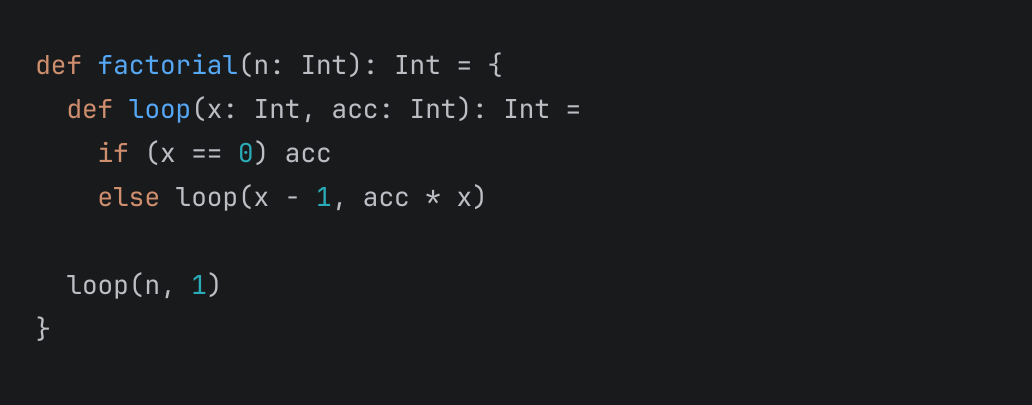
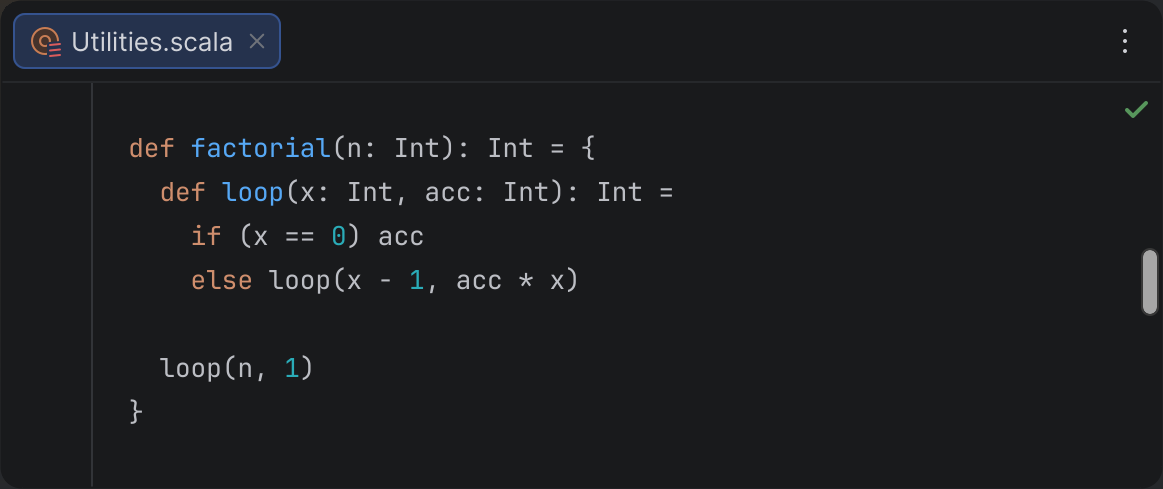
Looks like a code snippet, huh? But no, it’s a “file”:

We take this UI pattern for granted. However, if you think about it, such a “file” is no different from a “file” in the Project view: the title shows the name, just like nodes do; the scrollbar provides navigation, like the tree does; the error stripe can show marks, and the tree can show marks as well. We don’t really see the entire file, only a code snippet.

Thus, the question of whether to highlight the entire file makes no sense – we cannot highlight elements that are not visible, just as we cannot highlight elements in files that are not open. (And “opening a directory” in the Project view doesn’t change that.) Note that we don’t say that compilers “highlight” files; only IDEs do. We can only highlight what’s visible. Beyond that, analysis is involved, but not highlighting.

What you see is what you get

Now, how much should an IDE analyze? Even though it’s not possible to highlight code beyond the visible area, it is possible to draw marks on the error stripe, underline nodes in the Project view, or display errors in the Problems tool window. IntelliJ IDEA does all this. Yet, it doesn’t analyze code in files that are not open. Why? Isn’t more analysis better? (In principle, IDEs could process every single file, just as compilers do.) First, there are diminishing returns. Second, it is not without cost.

Source code is not a collection of random symbols. Code has high cohesion and low coupling. The greater the distance between two points in code, the less interconnected they are. That’s why highlighting code in the immediate context is more important, while highlighting distant code is less important. Moreover, the latter can only distract from the task at hand. If you’re editing a method, you don’t want to be distracted by thousands of errors in other files while you’re still in the process of editing.

At the same time, analysis consumes CPU, RAM, and battery. It can make the IDE or even the entire OS less responsive. In this highlighting economy, you want to maximize profit by balancing revenue and costs. But what is the proper scope to hit this Goldilocks zone, and is “the file” the answer?

To begin with, “file” is not a language entity (and compilation units don’t have to be files). It’s actually an implementation detail of how we store source code. In principle, we could store code as an abstract syntax tree (AST) in a database; then there would be no files. Metrics such as cyclomatic complexity are about packages, classes, and methods – not files. It could be that the distance in code is more important than the file boundary.

Another issue with files is that they can be arbitrarily large. In principle, you could put all project classes into a single file. This would not affect the bytecode, but it would make source code more costly to highlight. (Although there is some benefit to detecting errors in the entire file, this doesn’t guarantee the absence of errors in general – for that, you need to compile the project anyway.)

Now consider the visible area: that’s where we can actually highlight code. It is the focal point of attention and the location of the cursor, where feedback is immediate rather than indirect. The benefits of analyzing code in the visible area are the greatest. At the same time, the visible area is naturally bounded by display resolution, human vision, and human comprehension, and the cost of analysis does not depend on file size. It could be that “visible area” is a better choice for the scope than “file.” (We can also extend this logic to folding and skip parts that are folded and not actually visible.)

???

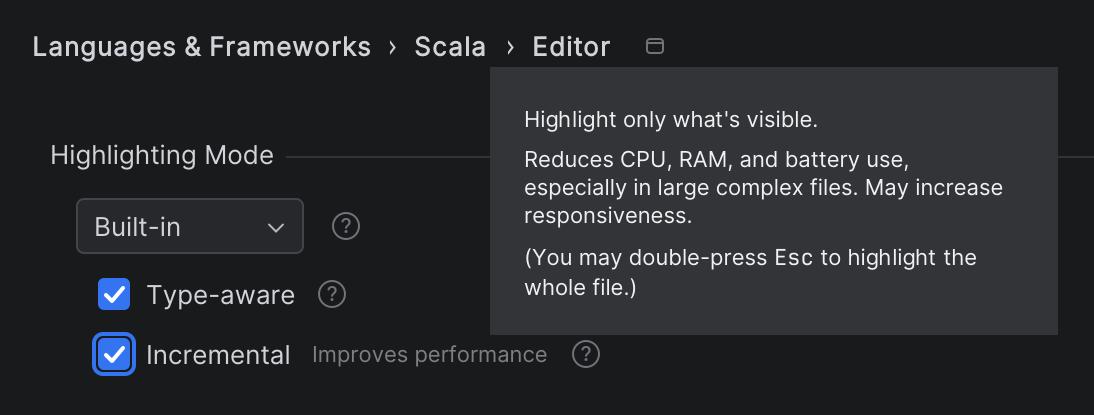
Fortunately, this is not just a theory – you can already try it in practice! Incremental highlighting can now be enabled in Settings | Scala | Editor | Highlighting Mode:

The setting is only for Scala and is available only when you’re using the built-in highlighting, not the compiler. The setting is per-project, so if you want to use this mode in multiple projects, you need to enable it in each one. (The capability has actually been available since 2024.3, but we recommend using the newest version to benefit from more improvements.)

When incremental highlighting is enabled, only code in the visible area is highlighted (excluding folded parts). The algorithm can handle multiple editors, including split editors and the diff viewer.

The mode is called “incremental” rather than “partial” because, even though only part of a file is highlighted, the parts that have already been highlighted remain highlighted. If you scroll through the code back and forth, computations are cached and not duplicated. Furthermore, the mode works well with incremental updates on modifications; editing code in a local scope preserves the already highlighted ranges, even outside the visible area.

To make scrolling smoother, the algorithm pre-highlights 15 lines before and after the visible area. (It’s possible to customize this range by adjusting scala.incremental.highlighting.lookaround in the registry.) However, if you navigate to a definition in a file directly, you may observe on-the-fly highlighting, similar to when you open a file for the first time or navigate to definitions in other files.

The error stripe (marks on the scrollbar) is filtered to include only data within the visible range. Next/Previous Highlighted Error navigates between known – usually visible – errors. Several inspections, such as Unused Declaration and Unused Import, are not active. However, imports are normally folded anyway, and Optimize Imports does work. Many of these restrictions are accidental, intended to keep the implementation simple, and can be improved in future updates. (Select Nightly in Settings | Languages | Scala | Updates to get updates faster.)

When the incremental highlighting mode is enabled, you can double-press the Esc key to analyze the entire file on demand, using all inspections.

Profit

The benefits of using incremental highlighting include:

  1. Better responsiveness
  2. Optimized CPU usage
  3. Efficient memory usage
  4. Cooler system temperatures
  5. Quieter operation
  6. Longer battery life

This applies to both initial highlighting and re-highlighting – both when viewing and editing code. In many cases, highlighting time can be reduced by up to 510 times, though the exact amount depends on the file size and code complexity. The benefits of incremental highlighting are especially noticeable for Scala code, which can be rather complex and difficult to analyze.

The benefits also depend on hardware; if you have a powerful desktop machine with water cooling, the effect might be less noticeable, but if you use an ultrabook, the difference is more significant.

Feedback welcome

Both the idea and the implementation are works in progress. Many parts can be refined and improved further. (See SCL-23216 for more technical details.)

We’d love for you to try the feature and share your feedback. Please report any issues through YouTrack. If you have any questions, feel free to ask us on Discord.

Happy developing!

The Scala team at JetBrains

How to Triage a Phishing Alert Faster — Without Rebuilding the Process Every Time

Most phishing alerts do not take long because they are difficult. They take long because the workflow is inconsistent.

You get the alert.

A user reported a suspicious email. Maybe your mail gateway flagged it. Maybe your SIEM created a case. Either way, you now have the same question every SOC analyst has asked a hundred times:

Is this real, or is this noise?

The problem is not that phishing triage is impossible. The problem is that most teams still do it in a fragmented way.

One analyst checks the headers first. Another starts with the sender domain. Someone else jumps straight to the links. Then comes the write-up, the ticket note, the escalation decision, and the inevitable feeling that you may have missed something small but important.

That is where the time goes. Not in any one check by itself. In the lack of a repeatable process.

Over time, I found that the fastest way to triage phishing was not to become “faster” at each individual step. It was to stop rebuilding the workflow from scratch every time.

This is the process I use now to move from a suspicious email to a structured triage note in minutes instead of dragging the same alert through 20 different micro-decisions.

Why phishing triage often takes longer than it should

Most analysts are doing several things at once when a phishing alert lands: checking sender and reply-to details, reviewing SPF, DKIM, and DMARC, inspecting links and domains, deciding whether the message looks like credential harvesting, malware delivery, or simple spam, and documenting findings for a ticket or escalation.

None of those steps are unreasonable. The slowdown comes from doing them in a different order every time, with different depth, and often with different output formats depending on who is on shift.

First problem: time loss. You keep re-parsing the same raw material manually — raw headers, sender path, suspicious domains, authentication results, URLs and context.

Second problem: inconsistency. Two analysts can look at the same phishing email and produce two very different summaries, severities, and next actions. That is not just a people problem. It is a workflow problem. A structured first-pass triage fixes both.

The workflow I use now

Step 1 — Get the full raw email

The first thing I want is not just the visible message body. I want the full raw email: headers, sender path, authentication results, and the message body.

In Gmail, that means opening the message and using Show original. In Outlook or other mail clients, there is usually a similar option to view the full source.

Why this matters: if you only look at the visible email, you miss some of the most useful phishing indicators — Reply-To mismatches, Return-Path differences, SPF / DKIM / DMARC results, sending infrastructure clues, and message routing signals.

The body tells you what the attacker wants you to believe. The raw email tells you how the message actually traveled. You need both.

Step 2 — Run a structured first-pass analysis

Instead of manually pulling the email apart every time, I paste the raw message into a phishing triage workflow that handles the first-pass parsing for me.

I use SOC.Workflows, which is a browser-based tool I built for exactly this kind of structured analyst workflow. The important part is not the brand. The important part is the sequence.

Paste the raw email into a structured analyzer, and let it do the first-pass breakdown:

  • sender and reply-to mismatch
  • SPF / DKIM / DMARC results
  • suspicious domains or lookalikes
  • shortened or risky URLs
  • urgency language and social engineering cues
  • severity and confidence
  • recommended next steps

That instantly turns a wall of raw email data into something you can actually reason about. And because the pasted email content is processed in the browser and not sent to a server, you can do that first-pass triage without shipping the raw message off somewhere else.

Step 3 — Review the signals, not just the branding

You stop asking: “Does this look polished?” and start asking: “Do the technical and contextual signals line up?”

A polished email is not trustworthy because it is polished. A passing SPF result is not trustworthy because it passed SPF. A brand logo is not proof of legitimacy. Phishing today often looks clean enough to pass a visual glance. What matters is whether the sender path, destination, and context actually make sense together.

Step 4 — Use AI only after the structure exists

Many people paste the raw email directly into ChatGPT or Claude and ask: “Is this phishing?” That can work sometimes, but it is inconsistent because the input is inconsistent. Raw data is noisy. Structured input is much more useful.

The better approach: do the first-pass parsing first, organize the evidence, then send the structured prompt into AI for deeper reasoning. Once the key signals are already extracted, AI becomes much more useful for validating the assessment, drafting a user advisory, suggesting containment steps, and writing a clean incident note.

AI works much better when it receives labeled evidence, not a wall of raw text.

Step 5 — Copy the incident note and move on

Once the findings are structured, copy the incident note into the SIEM ticket, ServiceNow, Jira, Slack, or whatever case workflow you use. A structured note fixes the write-up problem and makes handoff easier — every investigation looks more consistent across the team.

Why this matters beyond speed

Consistency. When the same type of alert gets triaged the same way every time, notes are cleaner, severity is easier to defend, escalations are more predictable, and handoffs are smoother.

Junior analyst support. A structured workflow helps less experienced analysts know what to check, in what order, and what actually matters. That reduces hesitation and helps them escalate with more confidence.

Better use of AI. AI is most useful after the evidence has already been organized — second-pass reasoning, clearer communication, faster documentation. Not as a substitute for the first-pass thinking.

What I would recommend to any SOC team

  1. Standardize the first pass — do not let every analyst invent the workflow from scratch.
  2. Work from the full raw email — do not rely only on the visible message.
  3. Structure the evidence before using AI — do not ask AI to do the organizing work if you can parse and label the signals first.

If you want to try this workflow

The phishing analyzer is at socworkflows.com/phishing — free, browser-based, no account needed.

If phishing is only one part of your queue, there are also analyzers for alert triage, VPC flow logs, and credential dumping — all built around the same idea: client-side triage first, AI reasoning second.

Final thought

Most phishing alerts do not become slow because the analysis is too complex. They become slow because the process is inconsistent. Fix the workflow, fix the speed. Structure the first pass properly, and you make everything after that easier — investigation, escalation, documentation, and team consistency.

That is where the real time savings come from.

Busy Plugin Developers Newsletter – Q1 2026

Your quarterly dose of plugin dev news, tools, and tips from JetBrains.

🧩 Marketplace Updates

Updated Approval Guidelines: New Technical Requirement

We’ve added a new clause to the Plugin Approval Criteria, under Section 2.2:

c. The Plugin must not modify, hide, intercept, or otherwise interfere with the functionality of any JetBrains Product in a way that disrupts, degrades, or circumvents its intended behavior, including any mechanisms related to licensing, subscriptions, trials, or product upgrade flows.

This requirement formalizes what has always been an expectation: plugins on JetBrains Marketplace must not tamper with core product behavior. Any plugin found to interfere with licensing, subscription validation, trial flows, or upgrade mechanisms (regardless of intent) will not meet our approval criteria.

If your plugin interacts with IDE internals in these areas, please review your implementation and make sure it complies before your next submission.
See the docs →

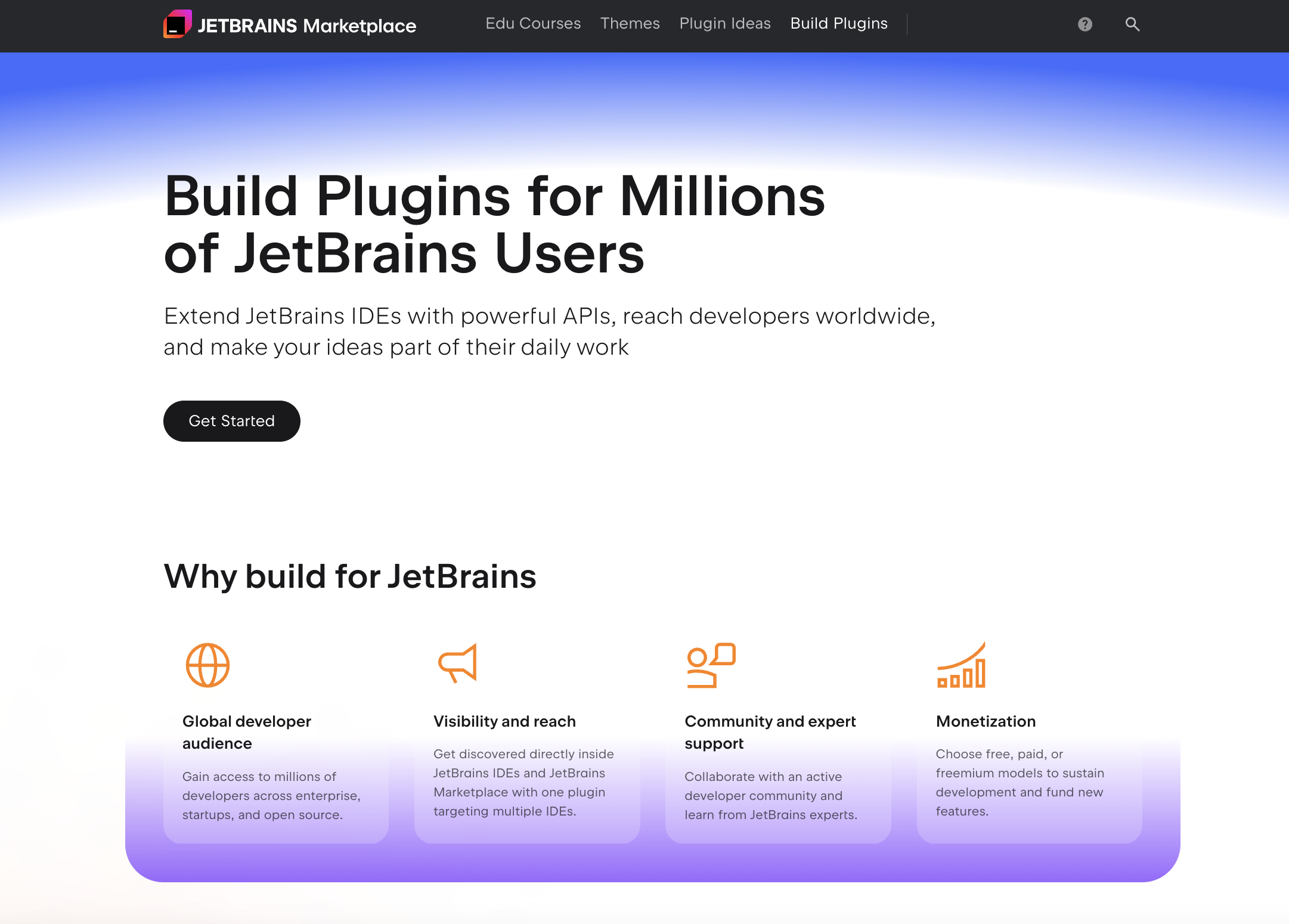
Build Plugins Page Got a New Look

The page for those just entering the world of plugin development has been redesigned. It now provides clearer steps covering the entire process—from development to publishing—along with key resources and essential information to simplify plugin creation and management.
Explore the page →

🔧 Plugin Development Tooling Updates

IntelliJ Platform Plugin Template 2.5.0

Repository that simplifies the initial stages of plugin development for IntelliJ-based IDEs. 

  • Updated org.jetbrains.intellij.platform to version 2.14.0.
  • Simplified project configuration by migrating IntelliJ Platform repository setup to settings.gradle.kts and inlining key properties and dependencies.
  • Cleaned up build scripts by removing redundant configurations and deprecated dependencies.
  • Streamlined the template by removing Qodana, Kover, and related configuration, dependencies, and workflow steps.

View Changelog →

IntelliJ Plugin Verifier 1.402

Tool that checks binary compatibility between IntelliJ-based IDE builds and plugins. 

  • Improved stability by optimizing graph cycle calculations and fixing macOS module naming issues.
  • Enhanced compatibility with paginated plugin ID retrieval from the Marketplace API.
  • Updated Kotlin and key dependencies.

View Changelog →

IntelliJ Platform Gradle Plugin 2.14.0

Plugin that helps configure your environment for building, testing, verifying, and publishing plugins for IntelliJ-based IDEs. 

  • Improved defaults for plugin verification, signing, and publishing configuration.
  • Added new helpers for selecting target IDEs and enhanced Gradle task configuration.
  • Simplified project setup with better defaults for Java toolchains and module handling.
  • Updated a minimum supported IntelliJ Platform version and fixed compatibility issues.

View Changelog →

💡 Tip of the Quarter

Enable Internal Mode to Access Powerful Development Tools

Enable Internal Mode to access UI Inspector (see component creation code), PSI Viewer, Registry settings, and more. Use “Skip Window Deactivation Events” when debugging to prevent ProcessCanceledException during breakpoints.

📚 Resources & Learning

 📖 Blog

Wayland by Default in 2026.1 EAP
IntelliJ-based IDEs will run natively on Wayland by default in supported Linux environments. See what’s changed, what to expect, and how this transition improves stability and performance.
Read →

Editor Improvements: Smooth Caret Animation and New Selection Behavior
More precise selections, smoother caret movement, and a refreshed visual style bring a more comfortable and intuitive coding experience. See what’s changed in the editor.
Read →

The Experience Gap: How Developers’ Priorities Shift as They Grow
A closer look at how plugin developers grow with the platform—and how their tools, habits, and expectations change along the way.
Read →

UI Freezes and the Dangers of Non-Cancellable Read Actions
Not all UI freezes come from the EDT. See how background read actions can cause issues and how to fix them.
Read →

🛠 IntelliJ Platform Plugin SDK

Split Mode (Remote Development)
Learn how Split Mode changes where plugin code runs, how frontend and backend communicate, and what it takes to build plugins that work smoothly in remote development environments.
Read →

Top-Level Notifications
Notification balloons help surface relevant information without interrupting the developer’s flow. Explore how to configure notification groups, add actions, and choose the right notification type.
Read →

Short Video: Notification Balloons in IntelliJ SDK

⭐ Community Spotlight

Livestream Recording: UI Freezes in JetBrains IDE Plugins and How to Avoid Them

In a recent livestream, Product Manager for the IntelliJ Platform Yuriy Artamonov, together with Developer Advocate Patrick Scheibe, explored one of the most common and frustrating issues in plugin development—UI freezes. The session covered why freezes happen (even outside the event dispatch thread), how read actions can block the UI, and what patterns to avoid when working with background tasks and concurrency.

Plugin Model v2 Explained: A New Way for JetBrains IDEs

In this short video, Róbert Novotný walks through Plugin Model v2 for the IntelliJ Platform, covering its modular architecture, improved reloading, and clearer dependency management.

💌 Until next time — happy coding!
JetBrains Marketplace team

Kotlin Professional Certificate by JetBrains – Now on LinkedIn Learning

JetBrains has partnered with LinkedIn Learning to offer the Kotlin Professional Certificate. This is a structured learning path that covers the full scope of modern software development – from Kotlin essentials all the way to building full-stack, multiplatform applications for mobile, desktop, web, and backend environments.

Start Learning

Who it’s for

This certification is designed for developers with basic programming knowledge who want to pick up Kotlin and explore multiplatform development. Whether you’re coming from Java, Python, C, or another language, this program will give you insight into what Kotlin can do across the full development landscape. If you are a mobile developer who wants to stop writing things twice, a backend developer curious about Kotlin’s server-side capabilities, or a generalist who wants to ship on multiple platforms without fracturing your codebase, this is for you.

What the learning path covers

The certification includes four courses structured to guide you along an intuitive path:

Kotlin Essential Training: Functions, Collections, and I/O starts with the fundamentals – how Kotlin handles functions, how its collection APIs work, and how to interact with files and I/O, as well as core Kotlin syntax. If you are coming from Java, a lot of this will feel familiar but cleaner. If you are coming from elsewhere, this is where Kotlin’s expressiveness starts to click.

Kotlin Essential Training: Object-Oriented and Async Code goes deeper into OOP principles and asynchronous programming in Kotlin. The course introduces distinctive Kotlin features such as sealed classes, data classes, and extension functions, while showing how coroutines make async programming more readable. This course builds the foundation you need before getting started with multiplatform.

Kotlin Multiplatform Development teaches you how to write shared business logic once and deploy it across multiple platforms – mobile (Android and iOS), web, desktop, and backend. You’ll learn about the architecture that makes this possible, as well as how to structure a KMP project, what can and can’t be shared, and how to make the boundaries between platforms work for you rather than against you.

Exploring Ktor With Kotlin and Compose Multiplatform brings it all together. Ktor is JetBrains’ own framework for building asynchronous servers and clients in Kotlin; Compose Multiplatform extends Jetpack Compose to desktop and web. Together, they let you build full-stack applications with a genuinely unified approach. This course is the practical capstone – you leave with experience actually building something, not just learning concepts.

Access

The Kotlin Professional Certificate is available on LinkedIn Learning through a LinkedIn Premium subscription, which includes a one-month free trial for eligible users. Many organizations and universities also provide LinkedIn Learning access to their employees and students, and some public libraries offer free access with a library card as well, so it’s worth checking with your employer or institution.

Start Learning

The certificate

In total, the certification takes about 11 hours spread across the four courses. You’ll work in IntelliJ IDEA, the industry’s leading IDE, gaining practical knowledge that’s essential for your career. By the end, you’ll be able to build complete multiplatform applications from a shared codebase. 

Complete all four courses and pass the final exam to earn your Kotlin Professional Certificate by JetBrains. You’ll be able to download it, share it, and add it directly to your LinkedIn profile to showcase your Kotlin and multiplatform development skills to recruiters and hiring managers.

Let us know how you like the courses, and be sure to share your certificate and tag us on LinkedIn.

We’re excited to see what you build with Kotlin!